Monday, 24 December 2012

GIMP (GNU Image Manipulation Program), Google Draw and OpenOffice Draw


GIMP is a software that has tools used for retouching and editing, free-form drawing, resizing, cropping, photo-montages, converting between different image formats, and more specialised tasks. GIMP is like Photoshop but they are different in some cases depend on the needs of the user.

To use GIMP, you need to download it first and it is free! Feel free to have a visit to its website, http://www.gimp.org/.


You may also make a drawing using Google Doc. Go to docs.google.com and sign in with your google account. And then, click on Create ---> Drawing just like in the picture below.


Your screen will appear like this:


And you may now proceed with your drawings. You may use the drawing tools (in the red box in the picture above) to draw using your own creativity.

I have done with my drawing. What about yours? ;)


And the last 2D Graphic Editing Software is OpenOffice.


To use this software, you need to install it first. And it is free, just like GIMP. You may install it here, http://www.openoffice.org/download/.

OpenOffice is a software suite for word processing, spreadsheets, presentations, graphics, databases and more. It is available in many languages and works on all common computers. It stores all your data in an international open standard format and can also read and write files from other common office software packages.

Well, now, you may choose which software that you prefer the most to edit your graphics. And as for me, I would prefer Microsoft Paint more as it is easier and more interesting. You have your own view ;)

Till we meet again on the next entry. Happy reading guys!

Shapes / SmartArt Powerpoint

1. Search for Microsoft PowerPoint in your desktop (look at the arrow below). If you could not found Microsoft PowerPoint at your desktop, you may find it by clicking on 'All Programs' ---> Microsoft Office ---> Microsoft PowerPoint.


2. Click on Insert ---> Shapes, to draw using shapes.


3. You will find many types of shapes that could be used to create an object. This is the drawing that I have done:


4. Using Microsoft PowerPoint, you may also draw using SmartArt. Click on Insert ---> SmartArt. But basically, we use SmartArt to draw something that sort of mind map.


5. After that, a window will appear just like below. You may choose any shapes of mind map that you like.


6. You may also change the colour or the themes based on your interest. The arrow below shows the buttons that you could use to beautify your drawing.


All of you need to know that all of the graphics in Microsoft PowerPoint are vector graphics. But they will be bitmap graphics when you save them as jpg, bmp and etc.

Microsoft Paint

1. You will always find Microsoft Paint in any laptop, computer or even notebook. Go to 'All Programs' in your desktop and search for 'Accessories'. You will find Microsoft Paint there.


2. Your screen will appear just like the image below. You will find many buttons on top that will help you with your drawings. There will be many types of brushes, shapes, colours and many more. Have fun drawing guys! :)


3. This is my drawing. What about yours? ;)


Tenth Week Task.

For this week, we learnt about 2D Graphic Editing Software, in which they are:

  • Microsoft Paint / Paint Brush
  • Shapes / Smart Art Powerpoint
  • GIMPS (OSS)
  • Online - google draw (collaborative drawing)
  • OpenOffice Draw (OSS)


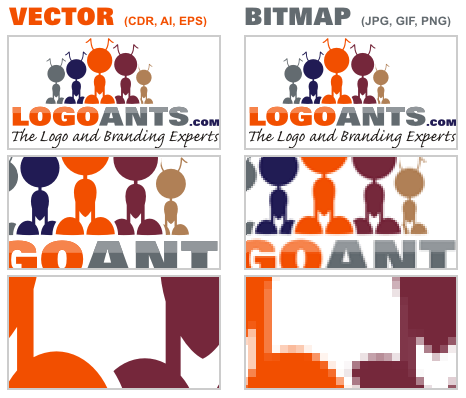
There are two types of 2D graphic that we should know and they are bitmap images and vector images.

Bitmap images, or also known as raster images, are made up of pixels in a grid. Pixels are picture elements; tiny dots of individual color that make up what you see on your screen. All these tiny dots of color come together to form the images you see. And the common image file format for bitmap images are BMP, GIF, JPEG, JPG, PNG, PICT (Macintosh), PCX, TIFF and PSD (Adobe Photoshop).

While vector images are made up of many individual, scalable objects. Objects may consist of lines, curves, and shapes with editable attributes such as color, fill, and outline. Because they're scalable, vector-based images are resolution independent. They always render at the highest quality. You can increase and decrease the size of vector images to any degree and your lines will remain crisp and sharp, both on screen and in print. Fonts are a type of vector object. Common vector formats include AI (Adobe Illustrator), CDR (CorelDRAW), CMX (Corel Exchange), CGM Computer Graphics Metafile, DXF AutoCAD and WMF Windows Metafile.


For more understanding on these two types of 2D graphics, you may read on this article, 'Two Types of 2D Graphics Vector and Bitmap Images'.

And now, let us proceed to the colour systems. There are Red-Green-Blue (RGB) colour system and Cyan-Magenta-Yellow-Black (CYMK) colour system.

RGB colour system applies only to devices employing light, such as computer monitors and television sets, while CYMK colour system are used in the print industry.


To have a clearer view on the colour systems, please click here.

In the next entry, I will explain more on the 2D Graphic Editing Software that I have listed above. Happy reading guys! ;D

More links for Steps to Use SPSS.

I have found these links and I find it easier to understand. It is a guide made by a student of Special Education and Sports and Recreation. They have done well in explaining the steps to use SPSS. You might want to refer to their blogs for more information.


Wednesday, 12 December 2012

Eight and Ninth Week Task

Hi everyone :)

For these two weeks task, we were asked to make a mini research on the survey that we created last week based on the topic that we chose, in which my group mate, Yen Yen and I chose 'Web 2.0 in Education'.

We managed to get 26 respondents to enable us to proceed with this mini research. We need to make this mini research using Statistical Package for Social Science (SPSS), in which we have to use the survey made using Google doc in the previous week.

The steps to make this mini research using SPSS is quite complex and complicated for me. So, here I provide you with a link showing you the steps on how to analyze data from the survey that we made using SPSS.


It is complicated, isn't it? I don't really enjoy doing this task as it makes me a little bit stressful. But we managed to make it done and we are now trying our best to write a report of this mini research. I will update that report on the next entry after we have done working on it.

That would be all for this entry. Thanks for reading ;)

Wednesday, 28 November 2012

Sixth and Seventh Week Task

Hi everybody! It has been a while since I posted anything here. So, today I would like to write and share about what my classmates and I have done in Computer in Education class during the sixth and seventh week.

We were asked to create our own online questionnaire using www.surveymonkey.com for survey research on the topic that we have chosen in the previous week in which my group mate, Yen Yen and I chose 'Web 2.0 in education'.

We tried exploring surveymonkey first by creating a random questionnaire and I created one on music. Well, feel free to answer this :)


And after we have done exploring how to create an online questionnaire using surveymonkey, we moved on with creating another survey regarding the topic that we have chosen before. We did the questionnaire using both surveymonkey and Google doc. Here, I provide you with the link of questionnaire on 'Web 2.0 in Education' using surveymonkey:


And this is the one using Google doc:


As for now, we have not gained many respondents yet. But we are trying to search for more. Feel free to answer all of the questionnaires to help us with the mini research that will be done next week.

From my point of view, I would prefer using surveymonkey more as it is easier for me to create a questionnaire. But creating one using Google doc could ease us in gaining the result. It depends on the main objective of creating the questionnaire. And I think, that would be all for now.

See you guys on the next entry ;)